
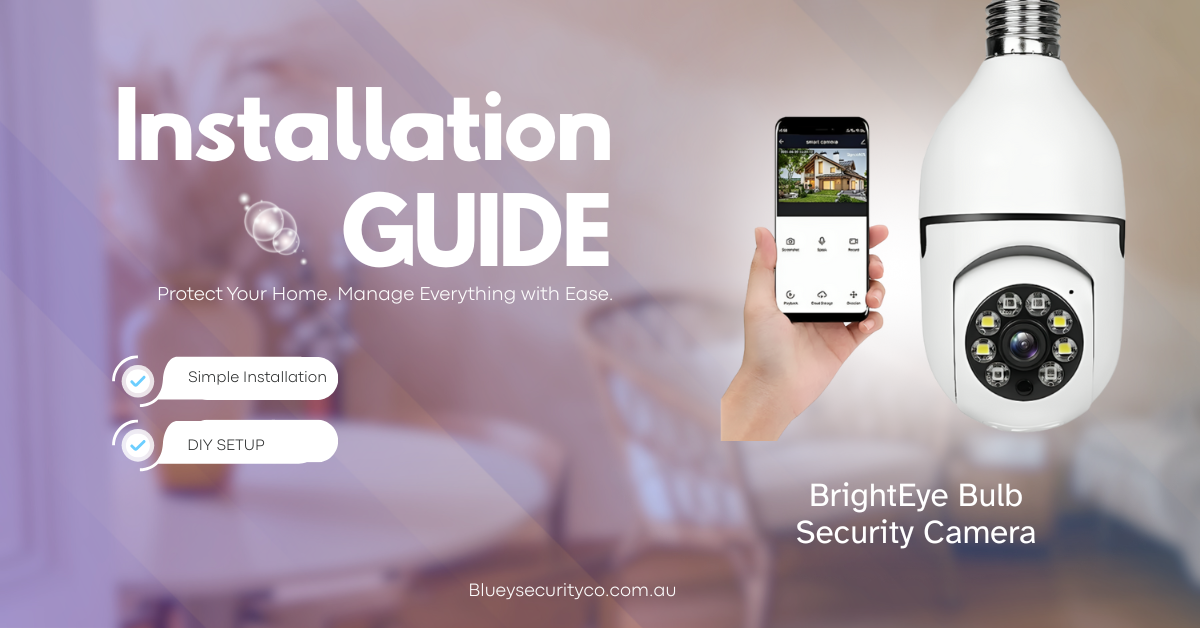
If you have just received your BrightEye Bulb Security Camera from Bluey Security Co., you are about to discover one of the easiest ways to add smart home protection without any tools or wiring. This clever device combines a 360° panoramic camera, built-in LED lights, two-way audio, and WiFi connection. All in a compact light bulb design that fits into a standard socket.
This guide will walk you through everything you need to know to install, connect, and use your BrightEye Bulb so you can start monitoring your home in just a few minutes.
Unpack and Check What’s Inside
When you open the box, make sure you have all the necessary parts before starting:
- The BrightEye 360 Bulb Security Camera
- A socket adapter (if included) to match your fixture
- A quick-start guide or user manual
The camera supports a micro SD card (up to 128GB) for recording footage, so if you plan to use local storage, have one ready. You’ll also need your home WiFi details on hand, as the camera connects via 2.4GHz WiFi.
Choose the Best Location
One of the great advantages of the BrightEye 360 is that you can install it almost anywhere with a light socket. Before choosing a spot, consider:
- Coverage area: Pick a light socket that gives a wide, unobstructed view of the area you want to monitor, like an entryway, garage, porch, or hallway.
- WiFi signal: Check that your phone gets a strong WiFi connection in that area. If your WiFi is weak, the camera might disconnect frequently.
- Lighting conditions: The built-in LED lights enhance video clarity at night, so choose a place where that illumination will be useful.
A simple test is to stand where you plan to install it and check if the camera will cover all the key angles you want to see.
Install the Camera
This step is incredibly easy. The BrightEye 360 works just like a light bulb.
- Turn off the power to the light socket before handling it.
- Remove the existing light bulb.
- If needed, attach the adapter that comes with your camera to match your socket type.
- Screw the BrightEye 360 camera into the socket until it fits snugly.
- Turn the power back on.
Once power is restored, the camera will light up and begin its start-up sequence. You’ll likely see the lens rotate and a small indicator light showing it’s ready to connect.
Connect to WiFi and Set Up the App
To view and control your camera, you’ll need to connect it to your smartphone.
- Download the recommended app (Yi IOT) from the App Store or Google Play.
- Open the app and create a new account if you don’t have one.
- Select “Add Device” and choose the WiFi Bulb Camera option.
- Ensure your phone is connected to a 2.4GHz WiFi network.
- Follow the instructions on the app. You might need to scan the QR code on the camera or show a QR code from your phone to the camera lens.
- Wait for confirmation that the connection is complete.
Once connected, you should see a live video feed directly on your phone. You can now rotate the view, zoom, turn on the light, and adjust other settings.
Configure and Test
Now that your BrightEye 360 is online, take a few minutes to explore its features:
- Panoramic view: Use the app to rotate and tilt the camera. It gives full 360° coverage, perfect for keeping an eye on every corner.
- Motion detection: Turn on motion alerts so you’ll receive a notification whenever there’s activity.
- Two-way audio: Test the speaker and microphone—you can talk through the camera and hear what’s happening in real time.
- Night vision: The camera automatically switches to night mode in low light. Test this by turning off the lights and checking the clarity.
- Recording setup: Insert and format a micro SD card if you want continuous recording or playback of events.
Walk through the camera’s field of view and check that the video feed and alerts are working properly.
Secure and Maintain
Once everything is running smoothly, make sure your setup is stable and clean.
- Keep the camera lens free of dust or insects that can block the view.
- Check that the socket is firm and the power is consistent.
- Review recordings occasionally to free up space on your SD card.
- Update the app or firmware when prompted for the latest performance improvements.
If you ever move or want to relocate the camera, simply unscrew it and install it in another light socket within your WiFi range.
All Set!
Your BrightEye Bulb Security Camera is now ready to protect your home with smart alerts, 360° video, and night vision. All powered by a simple light socket. It’s one of the easiest security upgrades you can install without wiring, drilling, or professional help.
For more details or to get one for another area of your home, visit blueysecurityco.com.au

Leave a comment
This site is protected by hCaptcha and the hCaptcha Privacy Policy and Terms of Service apply.